
How to Manage FrontPage Options – Banner Section
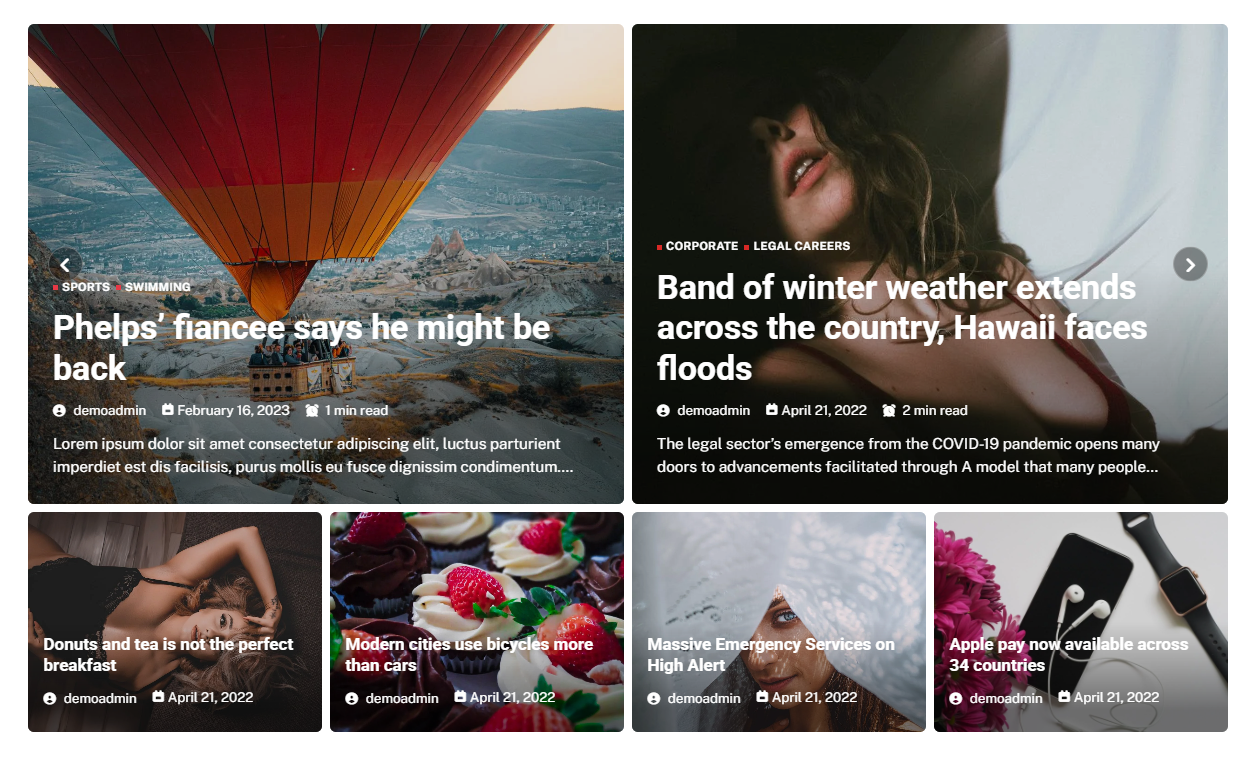
You can set the banner to posts and set different options for the banner section.
- To configure the Banner Section, you need to navigate from Admin Panel > Appearance > Customize > Front Page Options > Banner Section.
- In this section pane, you can enable/disable the Banner section to display the Banner on the Frontpage, otherwise, disable it to hide it.
- Right after enabling the Banner Section, you can set the following settings:
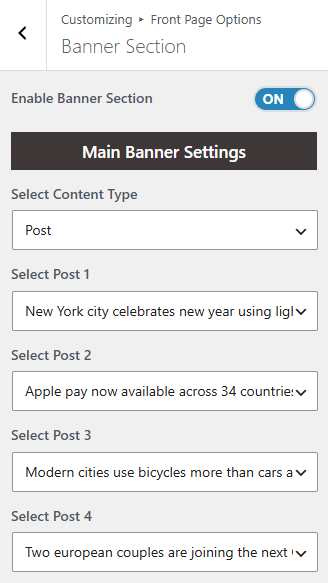
- Main Banner Section.
- Select a Banner Slider Content Type: Post / Category for the Banner section.
- Content Type: This setting allows you to select the kind of content to choose from. It contains select options (Posts) that allow the user to select a post to display as a Banner
- Selecting Post/Category as Content Type allows you to select a post (Existing post)/ Category to display the title, featured image, and content of that selected post as a Banner.
- Content Type: This setting allows you to select the kind of content to choose from. It contains select options (Posts) that allow the user to select a post to display as a Banner
- Select a Banner Slider Content Type: Post / Category for the Banner section.
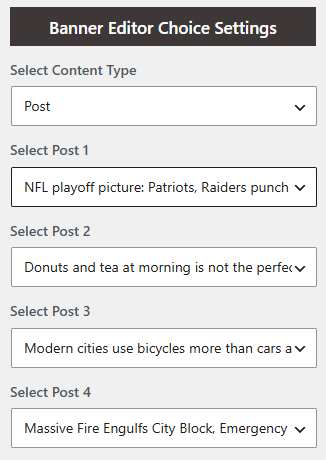
- Editor’s Choice Section.
- Number of Editor Choice to Show: This setting allows the user to set a number of posts to display in the editor choice section. *Note: Please input a valid number and save. Then refresh the page to see the change.
- Select Content Type: Post / Category for the Editor Choice section.
- Content Type: This setting allows you to select the kind of content to choose from. It contains select options (Posts) that allow the user to select a post to display as an Editor Choice Banner.
- Selecting Post/Category as Content Type allows you to select a post (Existing post)/ Category to display the title, featured image, and content of that selected post as an Editor Choice Banner.
- Content Type: This setting allows you to select the kind of content to choose from. It contains select options (Posts) that allow the user to select a post to display as an Editor Choice Banner.
- Main Banner Section.
Categories Section:
You can set the categories for the Categories Section and set different options for the Categories Section.
- To configure the Categories Section. You need to navigate from Admin Panel > Appearance > Customize > Front Page Options > Categories Section.
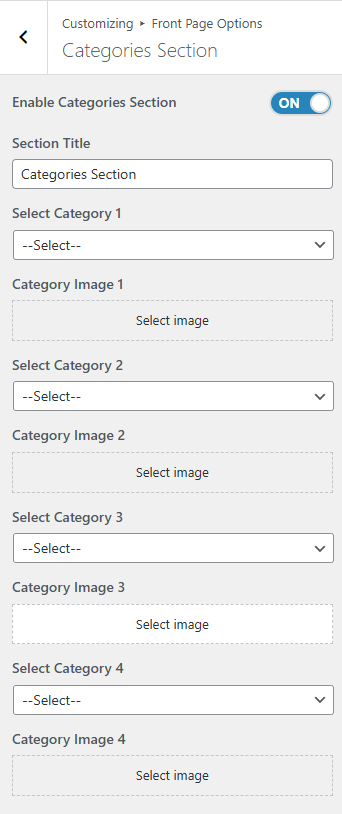
- In this section pane, you can enable/disable the Categories section to display the Carousel on the Frontpage; otherwise, disable it to hide.
- Right after enabling the Categories Section, you can set the following settings:
- Section Title: This setting allows the user to set the title for the section.
- Section Subtitle: This setting allows the user to set the subtitle for the section.
- Select Category: This setting allows the user to select a specific category to display the category name and the number of posts included in the selected category.
- Category Image: This setting allows the user to set individual category images.

Grid Posts Section
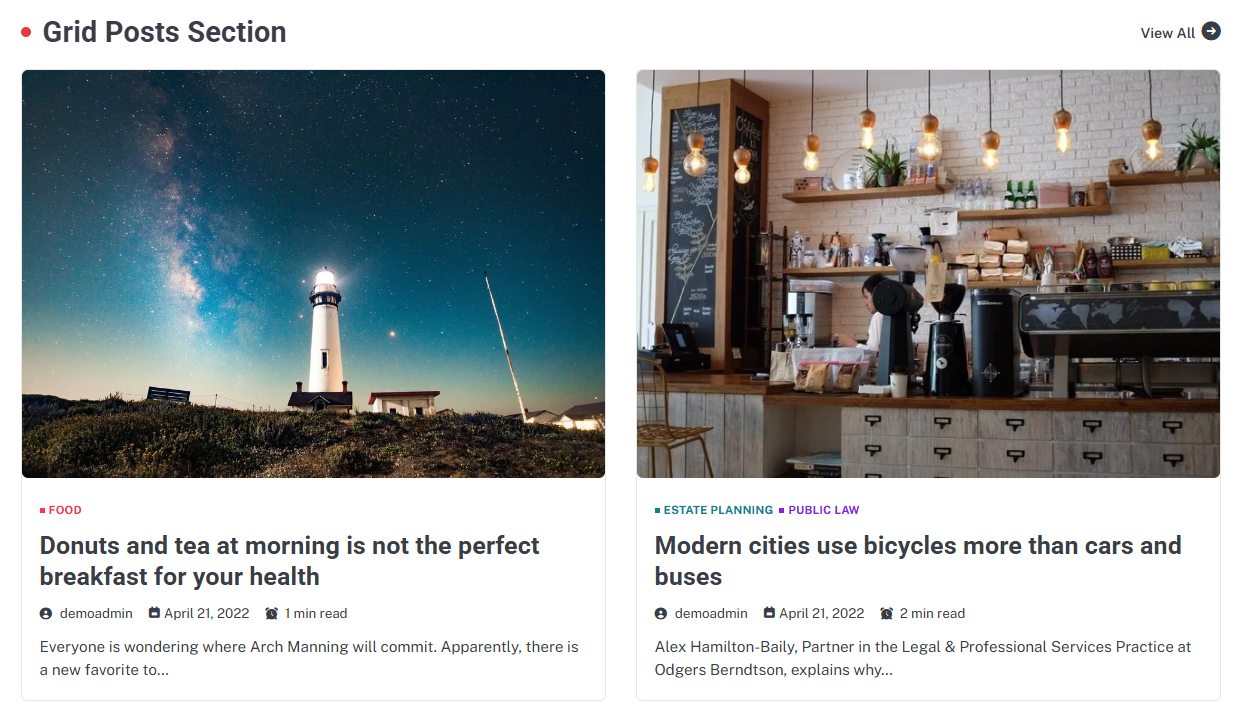
You can set the posts/categories for the Carousel Section and set different options for the Grid Posts Section.
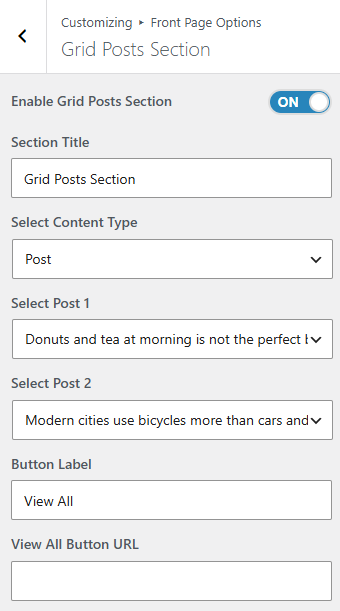
- To configure the Grid Posts Section. You need to navigate from Admin Panel > Appearance > Customize > Front Page Options > Grid Posts Section.
- In this section pane, you can enable/disable the Post Grid section to display Posts on the Frontpage; otherwise, disable it to hide.
- After enabling the Grid Posts Section, you can set the following settings:
-
- Section Title: This setting allows the user to set the title for the section.
- Section Subtitle: This setting allows the user to set the subtitle for the section.
- Select Content Type: Post / Category for the Post Grid section.
- Content Type: This setting allows you to select the kind of content to choose from. It contains select options (Posts) which allow the user to select a post to display for the section.
- Selecting Post/Category as Content Type allows you to select a post (Existing post)/ Category to display the title, featured image, and content of that selected post.
*Note: Click on Publish to save the changes.
