
Ascendoor Grid Posts Widget
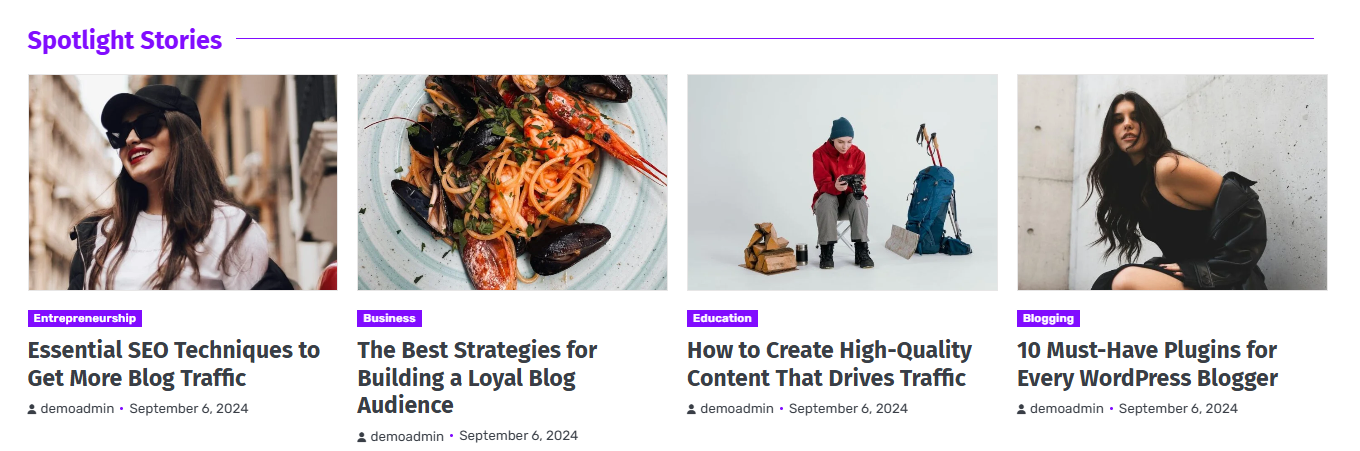
In this section, you can customize the Grid Posts Widget.
- To configure the Grid Posts Widget, you need to navigate from Admin Panel > Appearance > Customize > Widget > Widgets Section.
- In this section panel, you can select the section where you want to display the Grid Posts Widget.
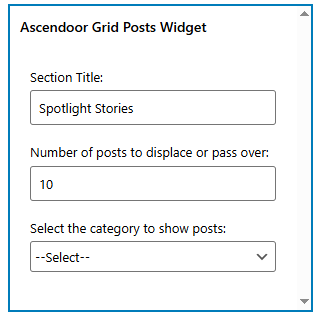
- After selecting the widget section, click on the Add a Widget button, then select the Ascendoor Grid Posts Widget. The user will see the following options:
- Section Title: This setting allows the user to set the title for the Grid Posts Widget.
- Number of posts to displace or pass over: This setting allows the user to exclude the number of posts from the selected category that the user would like to displace or pass over.
- Selecting Category: You can select the first category – select an Existing Category to display the title, featured image, and content of that selected post/page for the Grid Posts Widget.
Ascendoor Small List Widget
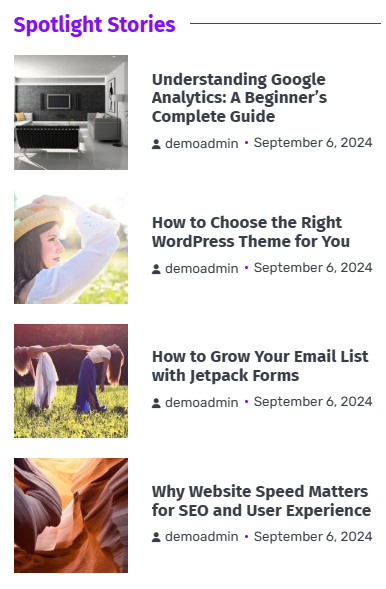
In this section, you can customize the Small List Widget.
- To configure the Small List Widget, you need to navigate from Admin Panel > Appearance > Customize > Widget > Widgets Section.
- In this section panel, you can select the section where you want to display the Small List Widget.
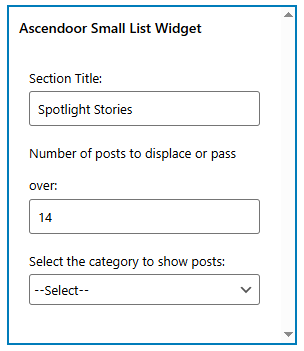
- After selecting the widget section, click on the Add a Widget button, then select the Ascendoor Small List Widget. The user will see the following options:
- Section Title: This setting allows the user to set the title for the Small List Widget.
- Number of posts to displace or pass over: This setting allows the user to exclude the number of posts from the selected category that the user would like to displace or pass over.
- Selecting Category: You can select the first category – select an Existing Category to display the title, featured image, and content of that selected post/page for the Small List Widget.
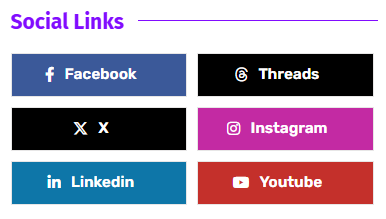
Ascendoor Social Icons
In this section, you can customize the Social Icons Widget.
- To configure the Social Icons Widget, you need to navigate from Admin Panel > Appearance > Customize > Widgets> Widgets Section.
- In this section panel, you can select the section where you want to display the Social Icons Widget.
- After selecting the widget section, click on the Add a Widget button, then select the Ascendoor Social Icons Widget. The user will see the following options:
- Section Title: This setting allows the user to set the title for the first Social Icons Widget.
- Select Menu: This setting allows the user to select the social menu for this section.

*Note: Click on Publish to save the changes.
