
How to Manage Front Page Options – Flash News Section
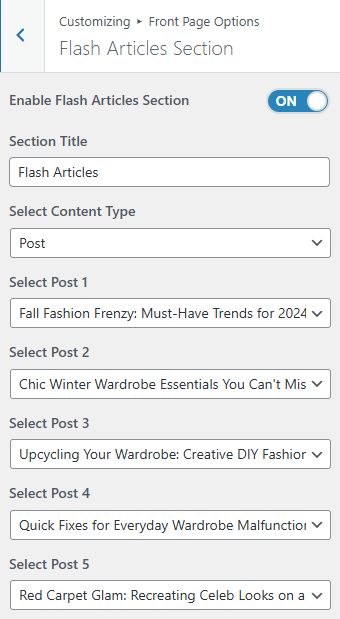
You can set the posts/category for the Flash News Section and set different other options for the Flash News Section.
- To configure the Flash News Section. You need to navigate from Admin Panel > Appearance > Customize > Front Page Options > Flash News Section.
- In this section pane, you can enable/disable the Flash News section to display Posts on the Frontpage otherwise disable it to hide.
- After enabling the Flash News Section, you can set the following settings:
- Section Title: This setting allows the user to set the title for the section.
- Select Content Type: Post / Category for the flash news section.
- Content Type: This setting allows you to select the kind of content to choose from. It contains select options (Posts) that allow the user to select a post to display for the section.
- Selecting Post/Category as Content Type allows you to select a post (Existing post)/ Category to display the title, featured image, and content of that selected post.
- Content Type: This setting allows you to select the kind of content to choose from. It contains select options (Posts) that allow the user to select a post to display for the section.

Banner Section
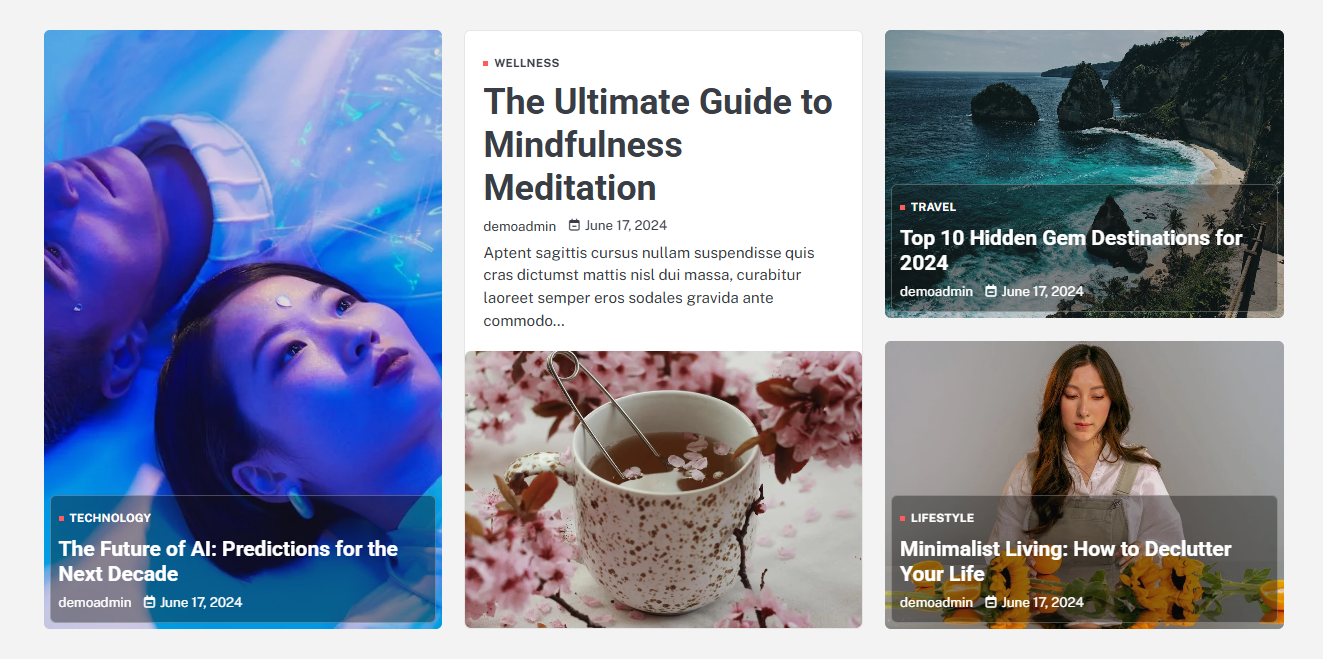
You can set the banner to posts and set different other options for the banner section.
- To configure the Banner Section, you need to navigate from Admin Panel > Appearance > Customize > Front Page Options > Banner Section.
- In this section pane, you can enable/disable the Banner section to display the Banner on the Frontpage, otherwise disable it to hide.
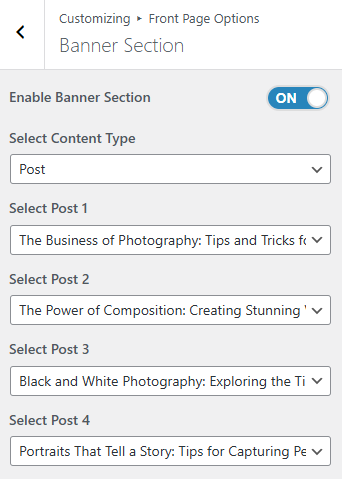
- Right after enabling the Banner Section, you can set the following settings:
- Select a Banner Slider Content Type: Post / Category for the Banner section.
- Content Type: This setting allows you to select the kind of content to choose from. It contains select options (Post) that allow the user to select a post to display as a Banner
- Selecting Post/Category as Content Type allows you to select a post (Existing post)/ Category to display the title, featured image, and content of that selected post as a Banner.
- Content Type: This setting allows you to select the kind of content to choose from. It contains select options (Post) that allow the user to select a post to display as a Banner
- Select a Banner Slider Content Type: Post / Category for the Banner section.
Editor’s Choice Section
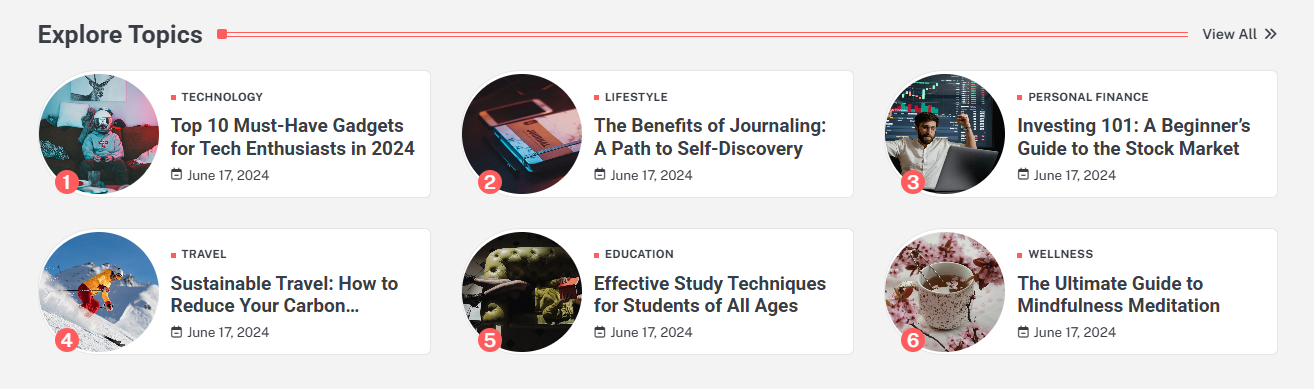
You can set the posts/categories for the Carousel Section and set different other options for the Editor Choice Section.
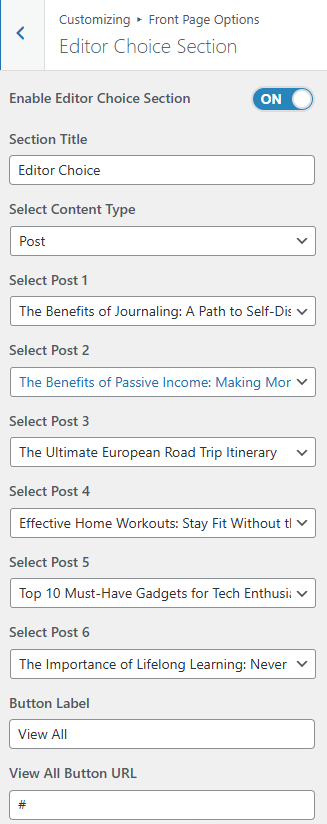
- To configure the Editor Choice Section. You need to navigate from Admin Panel > Appearance > Customize > Front Page Options > Editor Choice Section.
- In this section pane, you can enable/disable the Editor Choice section to display Posts on the Frontpage; otherwise, disable it to hide.
- After enabling the Editor Choice Section, you can set the following settings:
-
- Section Title: This setting allows the user to set the title for the section.
- Section Subtitle: This setting allows the user to set the subtitle for the section.
- Select Content Type: Post / Category for the Editor Choice section.
- Content Type: This setting allows you to select the kind of content to choose from. It contains select options (Posts) that allow the user to select a post to display for the section.
- Selecting Post/Category as Content Type allows you to select a post (Existing post)/ Category to display the title, featured image, and content of that selected post.
*Note: Click on Publish to save the changes.
